Exercise 3 – Data validation
Data is the fuel of
reliability improvement. This is especially true in condition based
maintenance. This exercise will provide you with a deep insight into the value
of good data practices, particularly regarding the records of the as-found condition of physical
assets.
|
|
Detailed Explanation |
Steps to follow |
||
|
1 |
In this exercise we will examine some of the data
validation tools in EXAKT. |
Download the wheelmotor oil analysis data from wheelmotor.zip.
(Not necessary if you are working from the CD and have hit "Get/Init
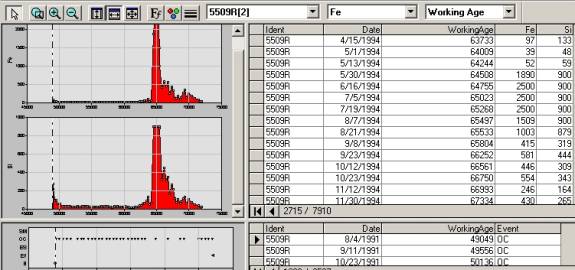
datafiles") |
||
|
2 |
This is a check for logical (chronolgogical
sequencing) errors. Examine the Data Check report. It will give you an
overall picture of the sample, and indicate
errors such as missing beginning or ending events. |
Start “EXAKT for Modeling”, (resize windows so that
these instructions and the EXAKT window can be viewed simultaneously)File,
Open, Navigate to locate the file Mar2004CRC_WMOD (in c:\Program
Files\Exakt\tutorial3\Mar2004CRC_WMOD if you extracted it from the CD), Open,
Modeling (on menu bar), Select Current Model, CBM Model: PHM(no OC), OK,
Activate Left pane (by clicking on it), Edit, Check Database, Data, Scroll
down and look at this report, Reduce and Close the Report |
||
|
3 |
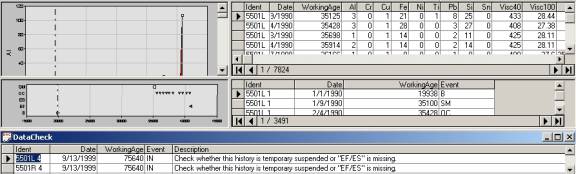
Executing the instructions on the right should give
you the following screen. |
A) Left pane, Open DataCheck table, double-click on “Description”
column heading, View (menu bar), Inspections, Include Events View, OK B) Arrange windows and panes so that the Inspections
and Events window covers the top two-thirds of the screen and the DataCheck
window the bottom third. The top
window should have four panes. |
||
|
|
||||
|
4 |
The tables and views are all in automatic synchronization. This makes it easy to find
and correct errors, as we shall see in subsequent steps. EXAKT has no way of distinguishing between missing
ending events and “temporary” suspensions[1].
Therefore you will see many requests to “Check whether this history is
temporary suspended or "EF/ES" is missing.” The user makes sure
that all such indicated records correspond to units that are operating
currently. EXAKT will then consider that they are indeed temporary
suspensions. Otherwise the message means that you are missing an ending
event, either an EF or an ES. You must manually add the missing record. If
the lifetime corresponding to the message is in fact on going at the moment,
then you must ignore this message. |
DataCheck Window |
||
|
5 |
The 47th record of the DataCheck table
has the description “This record can't be properly identified. It has the
same Ident, Date, WAge, and Event as the previous record:Id=5503R 2, Date=...” |
DataCheck window, scroll to Record 47 and place
cursor in Ident field of Record 47. |
||
|
6 |
Note that record (819) is flagged in the Inspections
table and the Events table likewise has its pointer positioned at record 404. |
Inspections window, widen the Date column so the
full date is visible, scroll up 1 row on the scroll bar so that record 818 is
visible |
||
|
7 |
Note that record 818 corresponds to an oil sample
taken on the same equipment on the same day. EXAKT is suspicious about this
and is asking you to verify the dates and working ages for these two.
Maintenance planning personnel tell us that record 819 must be an error.
Therefore we may delete it.[2] |
Delete record 819 (by
selecting the row (with Al = 143) and hitting the Delete key). |
||
|
8 |
Here is a similar type of problem. But in this case
two samples have the same working age but different calendar dates. EXAKT is
not pleased with this situation and is asking you to do something about it. You need to check if the equipment was
really idle for one month. |
DataCheck window, record 53, Inspections window,
scroll up one row so that records 6204 and 6203 are visible. |
||
|
9 |
Thus, does one go systematically through the
database records, as indicated by the DataCheck table, correcting the
anomolies that are pointed out by EXAKT. |
Do not bother making any more corrections for
purposes of this exercise. Close the Inspections, and DataCheck windows. |
||
|
10 |
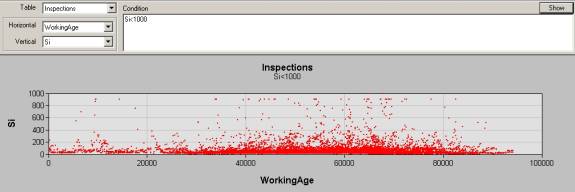
After following the instructions on the right you
will have reproduced the graph below |
View, Cross Graph, maximize window, Table:
Inspections, Horizontal: WorkingAge, Vertical: SI, Condition: Si<1000,
Show |
||
|
|
||||
|
11 |
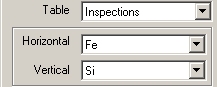
After following the instructions on the right you
will have reproduced the following graph. |
Horizontal: Fe, Vertical Si, delete “Si<1000”,
Show, reduce, X |
||
|
|
||||
|
12 |
Examine the OutputVarScript. It uses a succinct data
query language to conveniently transform combinations of existing covariates
into new covariates for building and testing risk models. The “*(=, >, or <
statement)”, shown on several lines of this program, is read “where statement
true”. The statement of interest is the next to last: CorrSi=Si*(Si<>900)+1.2*Fe*(Si=900); It is telling the program to return the actual value
of Si where Si <>900 and to use
1.2*Fe where Si=900. |
Database explorer pane (left pane), OutputVarScript,
X |
||
|
13 |
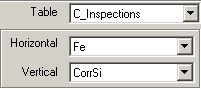
After following the instructions on the right you
will have reproduced the graph shown below. |
Modeling (on menu bar), Create Model Input tables,
Complete data, View, Cross Graph, maximize, Table: C_Inspections, Horizontal:
Fe, Vertical CorrSI, Show, reduce, X |
||
|
|
||||
|
14 |
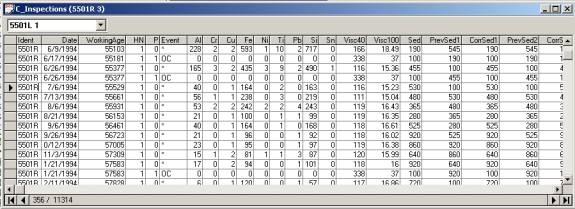
EXAKT handles events (such as oil changes,
adjustments, alignments, calibrations and other minor maintenance) that
impact condition data in a correct manner. The instructions on the right will
display the table illustrated below. It is often useful to display the events
and inspections in a single table. Note the regularity of the oil change
events. For a period of 5 months, From 7/6/94 to 11/21/94 no
oil change (OC) events are indicated, where oil changes were performed previously
about every month. We suspect that the oil changes occurred but were not
reported. |
Modeling (on menu bar), Select Current Model, CBM
Model: PHM(with OC), OK, Activate Left pane (Database explorer pane),
Modelling (on menu bar), Create Model Input tables, Complete data, Database
pane, C_Inspections, Scroll to record 356, reduce and close the C_Inspections table |
||
|
|
||||
|
15 |
Executing the instructions on the right will display
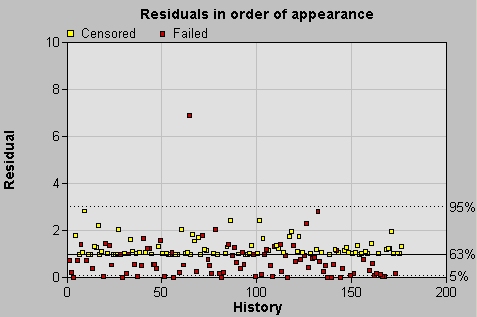
a graph similar to that found on page. One history falls outside the 5-95% lines, violating the
estimate of the proportional hazard model. One of the lifecycles does not fit
the model. Why? |
Modeling (on menu bar), Select Current Model, CBM
Model: PHM(noHistExcl), Submodel: FeCorrSed, OK, Procedures panel, Modeling,
Weibull PHM, In Order of Appearance, close the graph |
||
|
|
||||
|
16 |
Follow the instructions on the right and when we
scroll down to the last row, we see the history number (also shown below) of
the offending history. The number is found to be 64. |
Database pane, Residuals: PHM(noHistExcl)(FeCorrSed)
#1”, click on the “Residual” column header to order the records by Residual,
scroll down to last row, note the History Number of 64, close the table |
||
|
|
||||
|
17 |
History numbers (such as 64) are applied by EXAKT to
the life cycles in chronological order. We must identify which life cycle of
which unit is the offending one. Following the instructions on the right, we
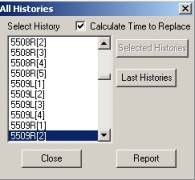
can find the history (life cycle) is the 2nd history of unit
5509R. (see dialog box to far right). |
Procedures panel, Decisions, All Histories, Select
History 5501L[1] (That is the first lifetime of the left wheelmotor of haul
truck 5501), hit the DnArrow key 63 times, Close |
|
|
|
|
We need to examine the cause of the offending
history. The instructions on the right reproduce the table and graph below.
From this Figure, we observe that the cause of offending history is the
unusually high values of Fe and Si not explained by a failure event. A
reasonable solution to obtain a better fit model is to assume that a
maintenance event was not properly recorded and to exclude this history from
the model. |
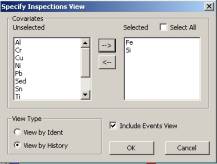
View, Inspections, Include Events View, View by
history, Select All, Uncheck, move all variables to “Unselect” position, move
Iron and Si to “Selected” position (as shown in image on the right), OK Select 5509R[2] |
|
|
|
|
||||



Further details and
background of this exercise can be found in the wheelmotors report.